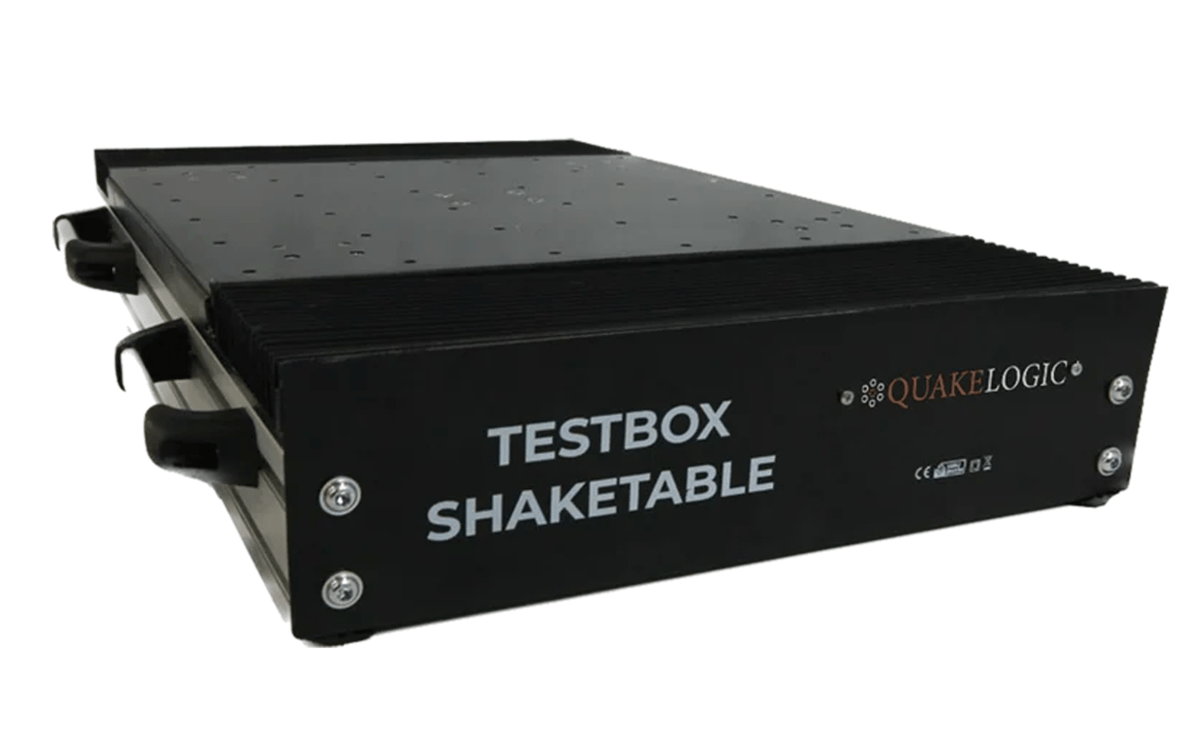
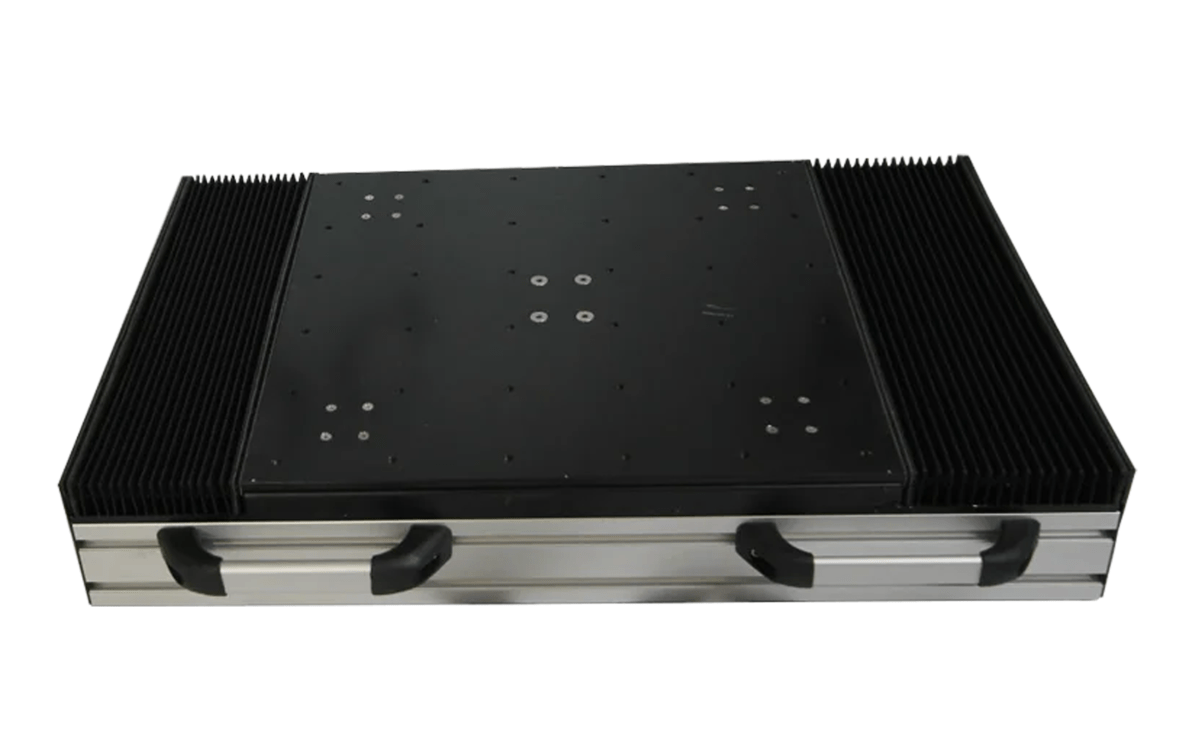
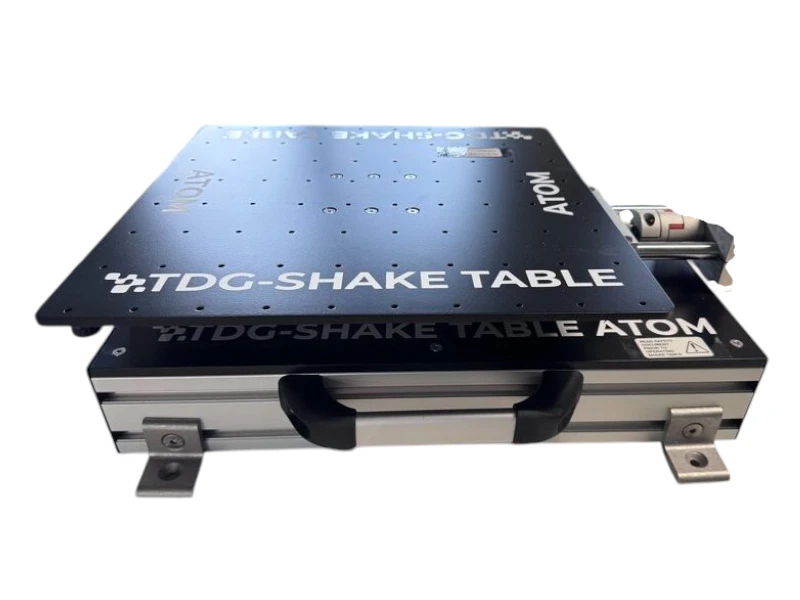
The DESKTOP-V2 has become the benchmark choice for university and research laboratories worldwide over the past decade, thanks to its cost-effectiveness, reliability, and ease of use. It’s currently in active use at institutions in the US, UK, Spain, Turkey, Netherlands, India, Taiwan, and Thailand.
High-Resolution Control with a smooth, quiet servo-motor drive
Closed-Loop PID Control for precise motion performance
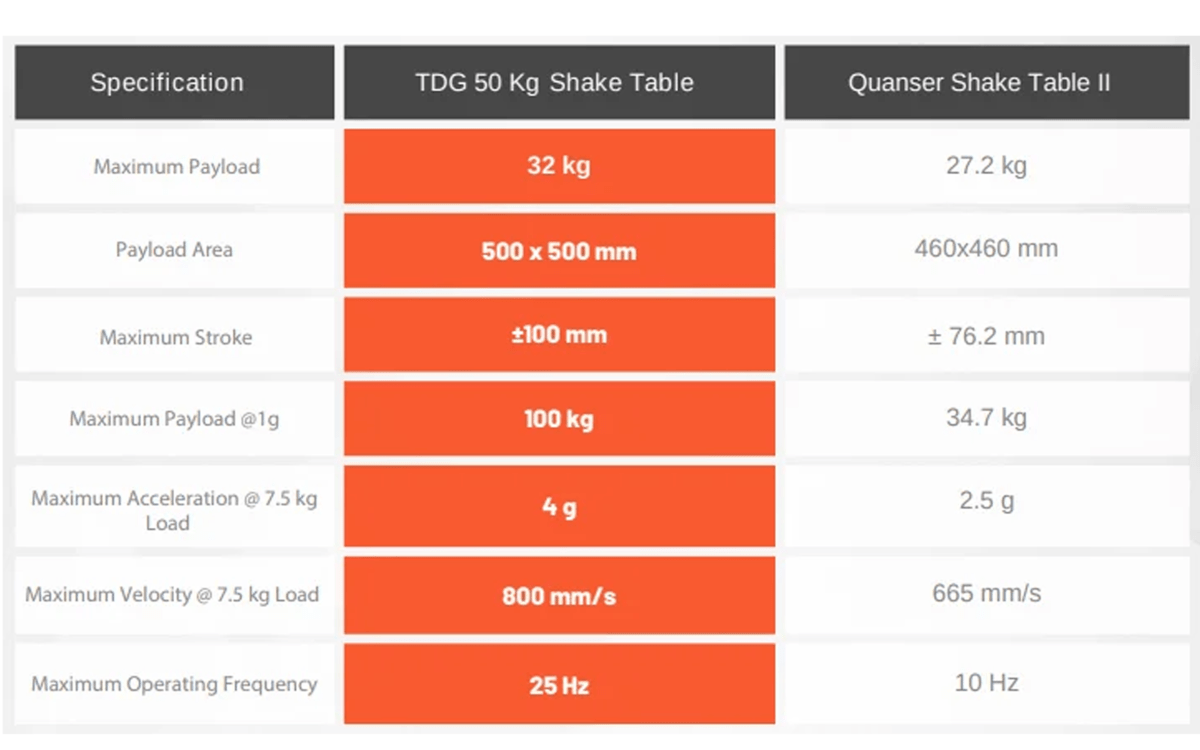
Payload Capacity: 50 kg (@ ±2 g)
Stroke: ±100 mm
Frequency Range: Up to 20 Hz
Low-Friction Linear Guiding for accurate movement
Earthquake Simulation capability
Supports sine, custom, and user-defined waveforms
Easy Setup, Plug & Play operation
Power: 220 V AC mains (110 V transformer option available)
Industrial-Grade Build: virtually maintenance-free, designed for long service life
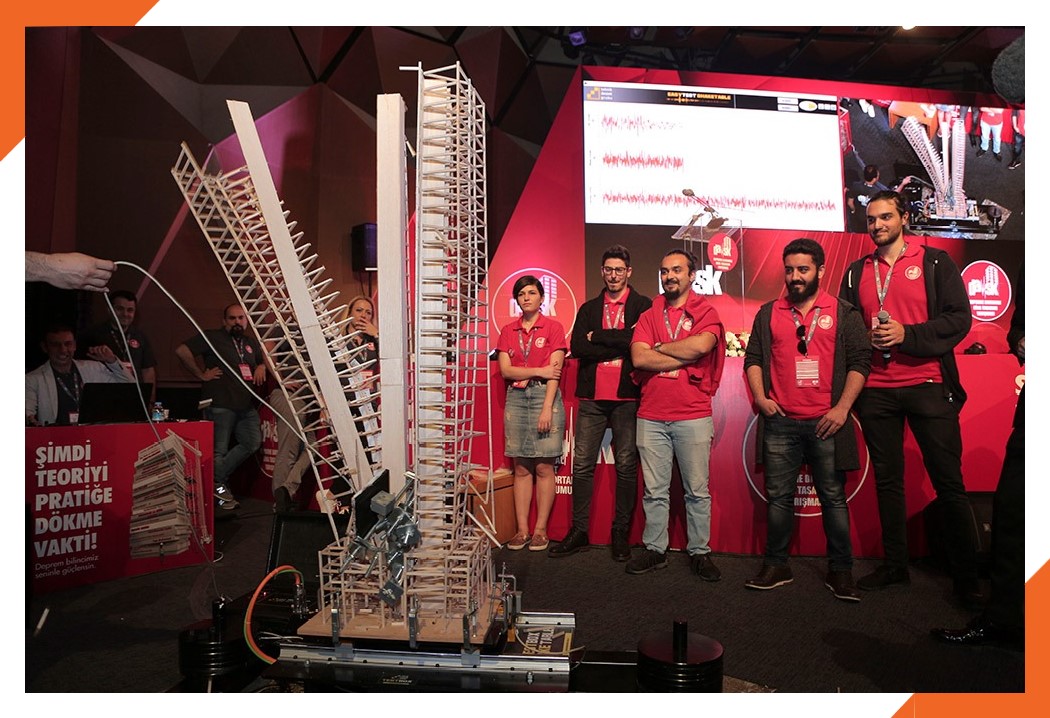
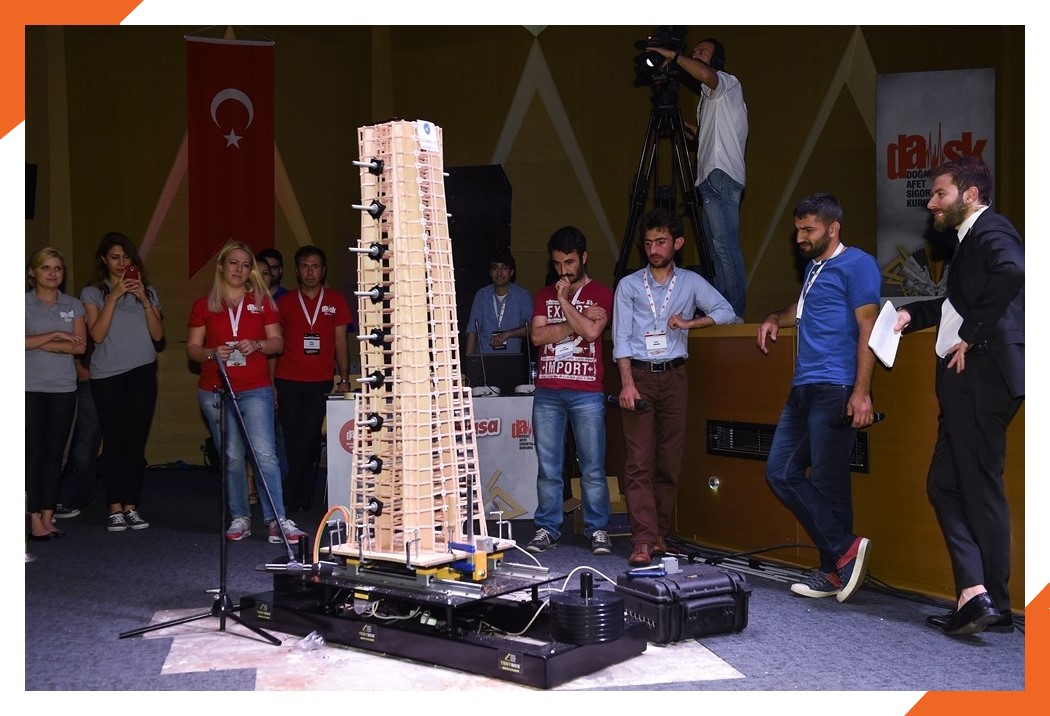
The DESKTOP-V2 is especially well-suited for teams participating in the EERI Undergraduate Seismic Design Competition (SDC). Here’s why and some details about the competition:
Organized annually by the Earthquake Engineering Research Institute’s Student Leadership Council.
Undergraduate student teams design, model, and build scale structures (often of balsa wood) under strict constraints (height, weight, structural design, etc.).
These models are tested on a shake table to simulate earthquake ground motions.
Judging criteria include architectural design, structural performance under shaking, analytical predictions vs actual behavior, design proposals, presentations/posters, and compliance with rules.
The stroke, payload capacity, and frequency range of DESKTOP-V2 are well aligned with requirements for safe and repeatable shake table testing of balsa models.
The precise, closed-loop PID control ensures that the table’s motion more closely matches the ground motion demands specified in EERI rules.
Its ease of setup and low maintenance allow student teams to spend more effort on design, analysis, and refining their model, rather than logistical issues.
The ability to use custom waveforms helps when simulating the prescribed ground motions in the competition (which change by year) and allows accurate comparison between predicted behavior (in analysis/simulation) and actual behavior in testing.
Civil & Earthquake Engineering Laboratories – ideal for research and teaching demonstrations.
Structural Mechanics & Mode Shape Studies – supports vibration analysis and structural dynamics experiments.
Educational Use – widely used in undergraduate and graduate programs for hands-on learning.
Small-Scale Testing – suitable for earthquake, civil, soil, and geophysics engineering studies.
Instrument Calibration – effective for accelerometer and seismometer verification.
Competitions & Training – used in seismic and earthquake-resistant design competitions.
Answer: A step-by-step training video is available on YouTube
Answer: The system requires 220 V AC for proper functionality. If only 110 V AC is available, we recommend using a portable transformer (minimum 500 W capacity).
Answer: We recommend the following configuration:
Answer: If the software is installed correctly but the system does not respond after clicking Torque and then Go to Zero, a configuration adjustment may be required:
project.ini file inside the installation folder.